Stop Paying for Ribbon Customization — Configure the House Pack Yourself
Your firm already has the template. What you need is a ribbon that matches how the team actually builds the monthly pack — without a setup project, a retainer, or another trip through Format Cells.
Two expensive habits show up in almost every mid-market finance team.
First: the house PowerPoint template lives as a 20- or 30-slide .pptx on a shared drive. Analysts open it, delete what they do not need, and rebuild the pack from memory. Or someone pays an add-in vendor to “configure the ribbon” — a setup fee, a customization retainer, and a project that outlasts the first close you were trying to speed up.
Second: in Excel, the same five formatting moves happen hundreds of times a day. Font colour for inputs vs. links vs. totals. Top border, then bottom border, then clear. Number formats for #,##0, then percent, then one decimal. Every one of those is a Format Cells detour — or a fixed default palette that is not quite your house style.
Neither needs a setup project. They need configuration the FP&A lead can do in an afternoon, then hand to the team as a file. That is the gap Navifia fills — self-serve ribbon and formatting setup, flat pricing, no setup fee and no customization retainer.
1. Wire the house template into the ribbon
Start with the pain everyone feels: thirty branded layouts sitting in a folder, and zero one-click path onto a new deck.
In Navifia you drop the firm’s layout deck into the templates folder and open the Layouts settings. Each slide shows a preview thumbnail, so you pick by sight — cover with photo vs. cover without, full-width content vs. half — instead of guessing from a title string.
Then you decide how each slide reaches the ribbon:
- Own button — a button that sits directly on the Layouts group of the Navifia ribbon. One click inserts that slide. Best for the layouts everyone uses every pack: cover, section divider, the two or three content grids you actually ship.
- On ribbon — the slide stays available under the Insert slide dropdown in that same group (checked for the ribbon, not pinned as its own button). One more click, still branded, without crowding the ribbon with thirty buttons.
A concrete setup: bring a 30-slide house template. Tick all thirty so they appear in the Insert slide dropdown. Pin the six you use most as own buttons. Done. Own buttons are capped at six (ribbon space is finite); the dropdown lists every layout you turned on — there is no separate dropdown maximum in Navifia, so a large house deck can live entirely in the menu if you want.
Elements (logos, source notes, branded text boxes) work the same way: pin a few as own buttons on the Elements group, keep the rest in the Insert element dropdown.
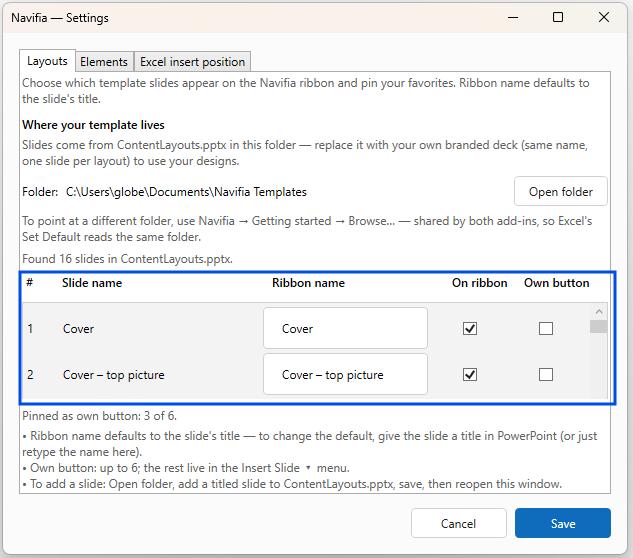
After that, every analyst inserts the same cover and content pages from the ribbon. Nobody rebuilds the pack from a blank slide, and nobody waits on a customization project to rename a button.
2. Stop opening Format Cells for the same five moves
The second pain is quieter but more frequent. An analyst highlights a block of inputs and wants blue font. Highlights a formula and wants black. Flags a variance and wants red — or green for favourable. Opens Format Cells. Again. Then wants a top border under a header row, a double bottom under a total, or no border at all. Format Cells. Again.
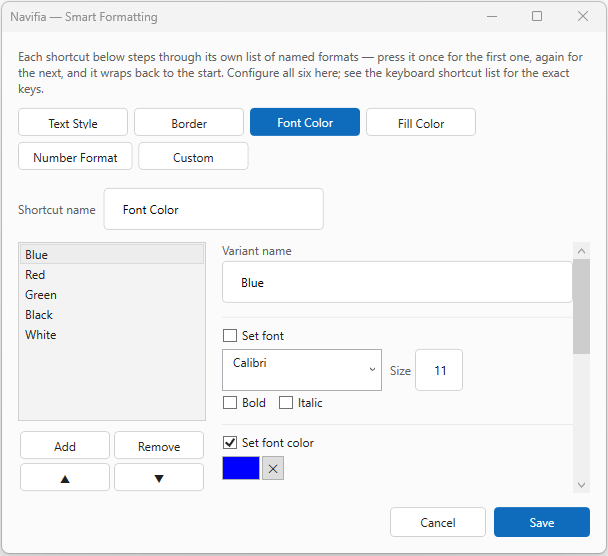
Navifia’s Smart Formatting cyclers turn those trips into one keystroke. Each cycler is an ordered list of variants you define. Press the shortcut once to apply the next variant; press again to step; move to a different cell and the cycle restarts from the top.
Font colour, on your terms — not a fixed Street palette. Build a Font Color cycler with black, navy, red, and green if that is your house language. Need a fifth for links or commentary? Add it. Rarely use green? Delete it. The list is yours: firm blues, RAG colours, whatever the pack actually uses — not a locked set of “standard banking” defaults.
Borders the way models are drawn. A Border cycler might run: top border → top and bottom → bottom only → all edges → no border. Or top thin, then double bottom for section totals, then clear. Same idea for number formats (#,##0, 0.0%, one decimal) and fills. You add or remove steps until the cycle matches the desk, then stop living in Format Cells for cosmetics.
Each cycler holds up to eight variants — enough for a real house style without becoming another dialog to manage. When the list is right, the whole team stops reinventing the same four clicks.
3. Put the tools you use on chords you remember
Once layouts and cyclers feel like yours, the next friction is muscle memory. A useful tool that lives three clicks deep still loses to the habit people already have.
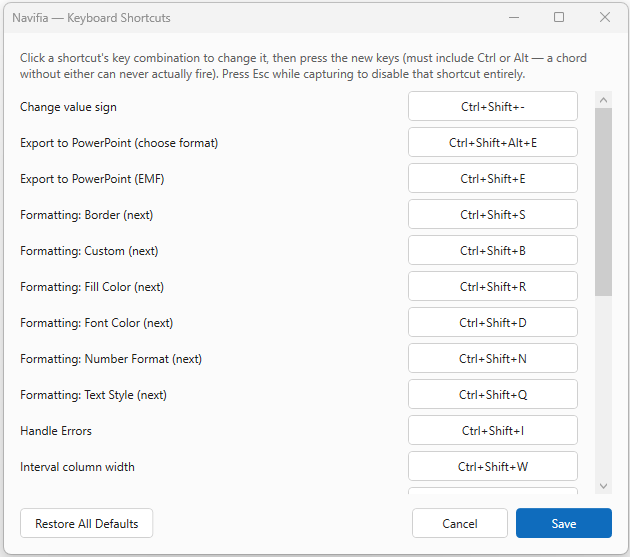
Navifia lets you rebind its actions — export and push, formatting cyclers, formula trace, threads, and the rest of the toolkit — to chords that fit how your desk works. Disable anything that fights Excel. Keep the shortcuts that match the pack rhythm. Configuration here is about speed after the ribbon content is set, not about buying another product SKU.
4. Match the pack’s visual language
After the big three, most teams still want status indicators (RAG, gauges, progress, Harvey balls, stars) to use the firm palette — not a vendor default green that clashes with the deck. Indicator colour configuration sits in the same self-serve setup flow: set it once so every inserted indicator looks on-brand.
Smaller options (where a new Excel-linked shape lands on the slide, which theme/master new layouts follow) matter too; they are usually a second pass once the ribbon and keyboard already feel right.
Export once. Same ribbon on every desk.
Configuration only works if it scales past one laptop. Navifia exports a setup file from each add-in (PowerPoint and Excel keep separate bundles). Layout and element choices, Smart Formatting cyclers, shortcut overrides, indicator colours — the lead configures once, exports, and everyone else imports.
Same own buttons. Same dropdown. Same colour cycles. Same chords. No admin console, and no per-seat customization bill when a new analyst joins mid-quarter.
What you stop paying for
The product price is one line: $16 per user / month for both Excel and PowerPoint add-ins (or $160/year). That is the whole bill — it pays for itself the first month-end for teams still re-pasting charts or re-teaching ribbon habits every hire.
There is no setup fee to unlock configuration. There is no customization retainer to pin a cover slide or add a green font step. You wire the house template, tune the cyclers, export the file, and get back to the pack.