Excel · Formula audit
Navifia tab → Formula audit group — precedents, dependents, and Spotlight. Separate from the Editor group.
When to use it: chase a wrong total across sheets, or keep a crosshair on a wide model while you walk columns.
1. Map of the group
| Control | What it does |
|---|---|
| Precedents | What feeds the active cell (Alt+←) |
| Dependents | What the active cell feeds (Alt+→) |
| Spotlight | Toggle crosshair on the active row/column (Ctrl+Shift+L) |
| ↳ Spotlight settings… | Colour, row/column/both, exclude active cell |
Pane title: Formula Auditor. Traces include other sheets — clearer than Excel’s tracer arrows alone.
2. Trace
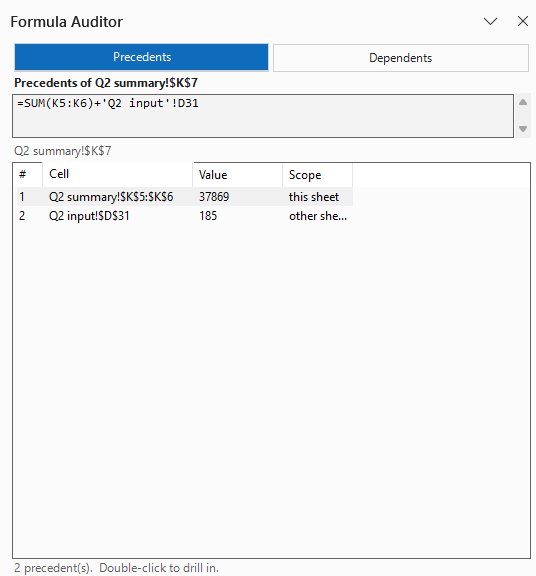
- Select the cell to investigate.
- Click Precedents or press Alt+← — what feeds this cell.
- Or click Dependents / Alt+→ — what this cell feeds.
- The pane lists address, current value, and whether the hit is on another sheet.
3. Navigate
| Action | How |
|---|---|
| Jump to a listed cell | Click the row |
| Step through the list | Alt+↑ / Alt+↓ (also works from the sheet) |
| Drill into that cell’s own trail | Double-click the row (or Enter) — pushes a breadcrumb |
| End the trace | Esc (hides the pane) |
Keyboard-only: Trace: Next Target / Trace: Previous Target (Alt+↓ / Alt+↑) have no ribbon button — they only fire from the keyboard, and only while a trace is active (context-sensitive; see Troubleshooting).
4. Spotlight
Crosshair on the active row and/or column while you move around a wide sheet.
- Click Spotlight to toggle on/off.
- Open the split-button arrow → Spotlight settings… for colour, row-only / column-only / both, and whether the active cell itself is excluded from the highlight (on by default).
5. Suggested workflow
- Select a total that looks wrong → Precedents.
- Drill with double-click / breadcrumbs until the bad input.
- Optional: Spotlight while walking a wide sheet.
Troubleshooting
- Formula Auditor empty — select a cell with precedents/dependents; cross-sheet links still list with an “other sheet” scope.
- Alt arrows do nothing — they only act while a trace is relevant; otherwise they fall through to Excel.