Excel · Smart formatting
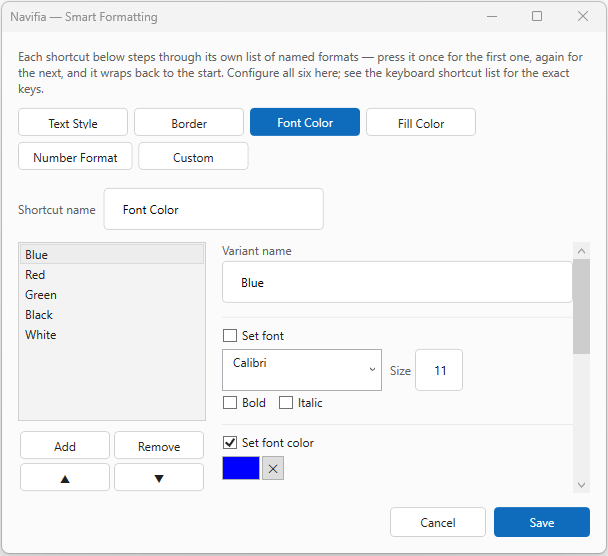
Navifia tab → Config → Smart formatting (dialog: Navifia — Smart Formatting).
Personal cyclers: ordered lists of format variants. One shortcut applies the next variant on the selection, then wraps. Moving to a different cell restarts at the first variant; only repeating the shortcut on the same cell/range steps forward.
When to use it: cycle house number formats, text styles, borders, or colours with one chord instead of opening Format Cells.
1. Default cyclers
Lists and chords below match the add-in defaults and Installer/Templates/factory-setup-excel.navifia.json.
| Cycler | Shortcut | Ships with |
|---|---|---|
| Number Format | Ctrl+Shift+N | One digit · No digit · Percentage · Percentage points · Multiple · Dollar |
| Text Style | Ctrl+Shift+Q | Title (Arial 12 bold) · Main text (Arial 10) · Note (Arial 9 grey) |
| Border | Ctrl+Shift+B | Top Border · Top and Bottom · Bottom Border · All border · No Border |
| Fill Color | Ctrl+Shift+R | No Fill · Blue · Light blue · Red · Light Yellow · Grey |
| Font Color | Ctrl+Shift+D | Blue · Red · Green · Black · White |
| Custom | Ctrl+Shift+S | Empty — build your own |
Up to eight variants per cycler. Per variant: font, size, bold/italic, font colour, fill, borders, number format. Save applies immediately (no restart).
2. Edit a cycler
- Configure → Smart formatting.
- Pick a cycler tab; add, remove, or reorder variants.
- Save.
Rebind chords under Keyboard shortcuts.
3. Share with the team
Cycler lists travel in Excel Export setup / Import setup together with shortcuts and Quick sizing widths — see Configure.
Troubleshooting
- Jumps to the first variant unexpectedly — you changed the selection; stay on the same cell/range to step the cycle.
- Shortcut does nothing — disabled or rebound in Keyboard shortcuts; license must be active.