PowerPoint · Send & Finalize
Two Tools controls for getting a pack out of PowerPoint without breaking your working file’s live Excel links.
When to use them: Send slides to share a PPT/PDF (whole deck or thumbnail selection). Finalize deck when the board/client copy must not contain Excel link metadata or stamps. Prefer these over casually Break Links on the working deck.
1. Send slides
Navifia tab → Tools → Send slides (Ctrl+Shift+S).
Exports from a temporary copy of the live deck (including unsaved edits). The open presentation is never trimmed or overwritten.
Steps
- Optional: in the thumbnail pane or Slide Sorter, multi-select the slides to send. With nothing selected, the whole deck is in scope.
- Click Send slides.
- Confirm scope (all slides vs current selection count).
- Choose format: PowerPoint (.pptx) or PDF (.pdf).
- Choose destination: - Save to file… — pick a path on disk. - Attach to new Outlook email (beta) — opens a new unsent Outlook message with the file attached.
- Confirm Send.
Typical: appendix slides only to a colleague, or a quick PDF emailed to a stakeholder — without File → Export → attach by hand.
2. Finalize deck
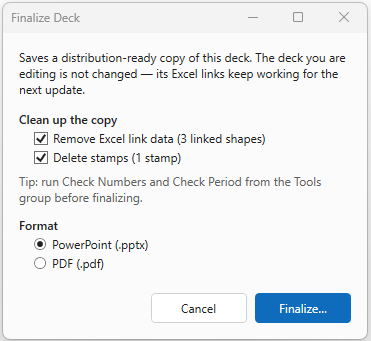
Navifia tab → Tools → Finalize deck.
Creates a distribution-ready copy: strips Excel link data (workbook path / sheet / address tags a recipient could read in the file XML) from linked shapes, deletes stamps, then saves as .pptx or exports as .pdf. The deck you are editing is not modified — its links keep working for the next cycle.
Steps
- Prefer running Check period / Check numbers (and fonts if needed) first — the dialog tip recommends it.
- Click Finalize deck.
- Review live counts of linked shapes and stamps that will be stripped/deleted on the copy.
- Choose PowerPoint or PDF and a destination path.
- Confirm. Working deck unchanged.
Typical: approved monthly pack → Board pack — Final.pdf with no link metadata and no DRAFT stamps; working file keeps 40 live links for next month.
3. Finalize deck vs Break Links vs Send slides
| Action | What changes | Use when |
|---|---|---|
| Send slides | Nothing on the working deck — export copy only (may still contain links/stamps) | Share slides/PDF quickly; links/stamps OK |
| Finalize deck | Nothing on the working deck — clean copy without link tags or stamps | External/board send; keep working links |
| Break Links (Excel Links pane) | Mutates selected linked shapes in the open deck — clears Navifia tags in place | You intentionally want the open file unlinked |
Do not treat Finalize and Break Links as interchangeable. Break Links is for the open deck; Finalize is for a clean outbound copy.
Troubleshooting
- Outlook attach failed — Outlook not installed/running, or blocked; use Save to file… instead.
- Finalize still shows Draft on the working deck — expected; stamps were removed only from the copy. Hide/Delete stamps on the working deck separately if needed (Stamps, Redact & Transparency).
- Recipient can still update links — you used Send slides (or shared the working file) instead of Finalize deck / Break Links.