Excel Workbook
Workbook-scale tools on the Excel Navifia tab → Workbook group: consolidate files, split and export sheets, and manage tabs.
Smart formatting and keyboard shortcuts: Smart formatting · Keyboard shortcuts.
1. Map of the ribbon
| Group | Controls |
|---|---|
| Workbook | Consolidate workbooks, Export sheets, Split sheet, Sheet index, Sort sheets, Sheet manager |
2. Consolidate workbooks
Pull every sheet from one or more external workbooks into a new workbook — unchanged (formats, formulas, everything). Not a row-stack merge; no header alignment and no “Source” column.
- Navifia → Consolidate workbooks.
- Add the
.xlsx/.xlsmfiles to consolidate. - Run — each source opens read-only; every sheet is copied onto the end of a new workbook; sources close without saving.
- Name collisions get suffixes
(2),(3), …. Files that fail to open are skipped with a reason; the rest still run.
Typical: five subsidiary packs → one combined workbook to work from, without opening each file by hand.
3. Split sheet
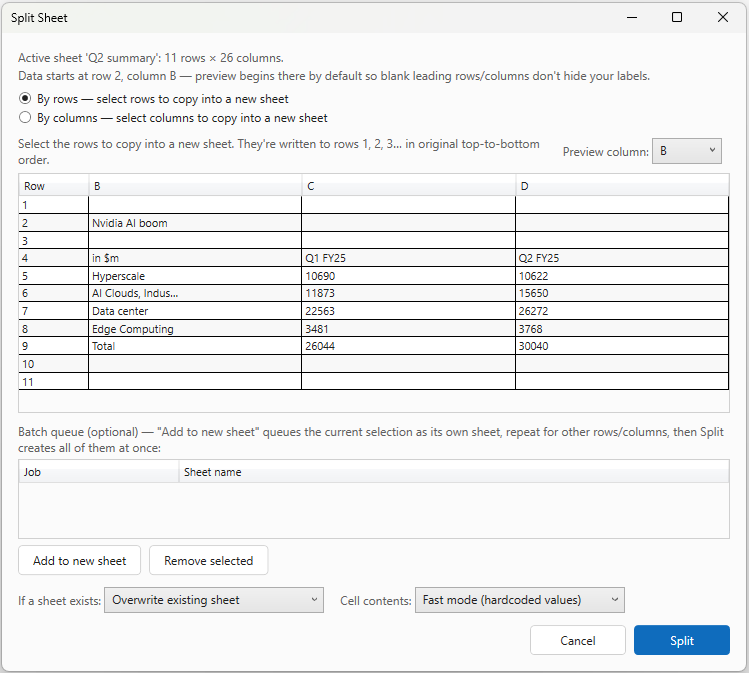
Carve selected rows or columns from the active sheet into one or more new sheets in a single run. Formatting (row heights, column widths, fills, number formats, gridlines) is preserved — Navifia copies the sheet then deletes what you did not select.
Basic split
- Click Split sheet.
- Choose By rows or By columns.
- Multi-select with
Shift+click (range) andCtrl+click (toggle). Preview updates as you select. - Set Preview column (row mode) or Preview row (column mode) if the auto-detected label column is not the best one to read by — preview only; copy still uses real row/column identity. Dates preview as dates, not serials.
- Choose Cell contents: hardcoded values · preserved formulas · live links back to the source (
='Source'!$A$1-style). - If a sheet name already exists: skip, overwrite, or rename with a timestamp suffix.
- Click Split.
Several sheets in one pass
- Select rows/columns → Add to new sheet → name the output (auto name offered; re-prompts on collision with another queued job).
- Change selection / mode → Add to new sheet again for each output.
- Split runs the whole queue. Empty queue = use the current on-screen selection as a single job.
Typical: EMEA rows → sheet “EMEA”, Americas rows → “Americas”, one Split.
4. Export sheets
Two modes in one dialog:
| Mode | Result |
|---|---|
| One consolidated file | Copies the selected sheets into a single new .xlsx workbook (choose Save path) |
| One file per sheet | Each selected sheet becomes its own file |
Per-sheet mode
- Click Export sheets → choose One file per sheet.
- Pick sheets, output folder, and format: Excel (
.xlsx/.xlsm), CSV, or PDF. - Optional prefix / suffix on filenames (base name = sheet name).
- On collision: skip, overwrite, or rename with a numeric suffix.
- Optional paste values only (formulas → values in the export).
Consolidated mode
- Choose One consolidated file.
- Browse a Save path for the new workbook.
- Selected sheets are copied into that file.
Typical: one sheet per subsidiary → PDF per sheet; or one combined workbook of selected tabs for a reviewer.
5. Sheet manager
Bulk visibility / protection / delete / sort. (Dialog title: Sheet Manager.)
- Click Sheet manager.
- Optionally Include hidden sheets in the list (covers very hidden sheets Excel’s Unhide UI does not show).
- Select sheets → choose an action: - Unhide selected / Hide selected - Delete selected (permanent — confirmed) - Protect selected / Unprotect selected (password field when needed) - Sort A → Z / Sort Z → A / Sort by number / Sort chronologically
There is no rename or tab-colour action in this dialog — rename tabs in Excel’s sheet tab UI (or use a dedicated naming pass). For sort with an explicit “all vs selected” scope UI, Sort sheets (§7) is the dedicated dialog; manager sorts operate on the manager’s selection/list flow.
Typical: reveal very-hidden helper sheets, unhide for review, re-hide, or chronological sort from the same list.
6. Sheet index
Creates or refreshes a hyperlinked table-of-contents sheet.
- Click Sheet index.
- Set the index sheet name.
- Optional: Include hidden sheets; Alternating row banding.
- Generate — each entry is a clickable link to that tab.
7. Sort sheets
Reorder tabs without dragging.
- Click Sort sheets.
- Choose sort order and apply scope.
- Modes:
| Mode | Behaviour |
|---|---|
| Alphabetical | A–Z or Z–A |
| Numerical | By leading number in the sheet name |
| Chronological | Period-like names — see below |
Chronological recognition
Same scenario-suffix idea as Check period on the PowerPoint side.
| Form | Examples |
|---|---|
| Bare year | 2025, FY24, FY2025 |
| Quarter / half (± year) | Q1, 4Q25, Q4 2025, H1 2026, 1H26, FY1Q |
| Month (± year) | March 26, Mar 2026, 01/2026, 2025-12 |
Trailing scenario tags (A/B/E/F, LE/BP/RF) are ignored for ordering — FY24A and FY24F sit together, tie-broken alphabetically. Unrecognised names sort last among themselves alphabetically.
8. Suggested workflows
Monthly pack tabs out of order
- Sort sheets → Chronological.
- Sheet index for a TOC before sharing.
Carve a master log
- Split sheet → queue EMEA / Americas / APAC with Add to new sheet.
- Export sheets as PDF or xlsx for each region.
Troubleshooting
- Consolidate skipped a file — file locked, passworded, or corrupt; message names the reason; other files still consolidate.
- Split Sheet copy failed once — Excel briefly busy; retry; if it persists, close other modal dialogs and try again.
- Live links look empty — blank source cells stay blank by design; only cells with data get
='Source'!…formulas. - Need to rename sheets in bulk — Sheet manager does not rename; edit tab names in Excel, or sort only.
- Chronological sort “wrong” — name may not match a recognised period form; rename tabs in Excel or use Alphabetical / Numerical.
- Very hidden sheets missing in Excel — use Sheet manager; they do not appear in Excel’s unhide UI.