Getting started
Five minutes from download to your first linked chart. This chapter also covers the License ribbon group (both apps).
1. Install
Get your beta key from navifia.com/join, then download NavifiaSetup.exe from navifia.com/download. One EXE installs the Excel and PowerPoint add-ins together.
On Office 2019 or 2021, install Microsoft’s VSTO Runtime before you begin. Microsoft 365 already includes it.
- Double-click the downloaded
NavifiaSetup.exe. Because the beta package is unsigned, Windows SmartScreen shows “Windows protected your PC” — click More info, then Run anyway. Only do this for a file you downloaded from navifia.com — see Compatibility. - On the Welcome screen, click Next.
- Accept the license agreement, then Next.
- Confirm the install location (the default is fine for most people) and click Next, then Install.
- If Windows is missing .NET Framework 4.8, the installer can download and install it — that step alone may need administrator approval. Otherwise the install runs without elevation.
- Click Finish. Excel and PowerPoint show the Navifia ribbon tab the next time they start — restart them if either was already open.
2. License group (both apps)
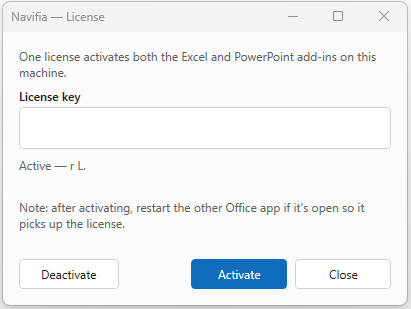
At the end of the Navifia tab in Excel and PowerPoint. Never license-gated — an expired key must not block reactivation.
| Control | What it does |
|---|---|
| License | Enter / refresh the beta key; set Language |
| Getting started | Reopens the welcome dialog (and related first-run help); marks welcome as seen. In PowerPoint, Browse… sets the templates folder. The dialog links to this guide and the full User manual. |
| Diagnostics | Environment report for support — Copy report into an email |
Activate in either app once; both add-ins share the license.
Activate
Open Excel or PowerPoint. On the Navifia ribbon tab, click License and paste your key. Both add-ins activate together — you only need to do this once, in either app.
Language
In the License dialog, Language:
- Automatic (match Windows)
- English
- 繁體中文 (Traditional Chinese)
Applies on the next restart of that Office host (Excel and PowerPoint each need a restart if you use both).
Diagnostics
When something fails (license, pane won’t load, ribbon missing, Sync errors):
- Open Excel or PowerPoint → Diagnostics.
- Review versions, license state, recent log summary.
- Click Copy report → paste into email to support@navifia.com.
Do not paste cell values, document text, or full license keys into public channels — paths, counts, and IDs are enough.
3. Insert your first linked chart


- In Excel, select a chart or a range of cells.
- Switch to PowerPoint (keep Excel open).
- On the Navifia tab, click Insert from Excel.
The shape now remembers where it came from. Change the data in Excel, click Update on the shape (or Push updates from Excel), and it refreshes. Full options: PowerPoint · Excel Sync and Excel · Sync with PowerPoint.
4. Explore from the ribbon
Every feature lives on the Navifia tab in both apps. Hover any button for a description; press Alt to see KeyTip letters for keyboard-only navigation. Use the Overview for a map of every group, then open the chapter for that group.
Next steps
- Compatibility — supported Windows / Office versions
- IT deployment — fleet rollout and allowlisting
- Overview — ribbon map and full chapter list
- Use cases — end-to-end FP&A workflows