Threads
Cell- or range-anchored review discussions that live inside the workbook — replies, attachments, and a four-status workflow. The slide owner can see open threads from PowerPoint without opening Excel.
.xlsx ; nothing is stored on a Navifia server.1. Open the Threads pane
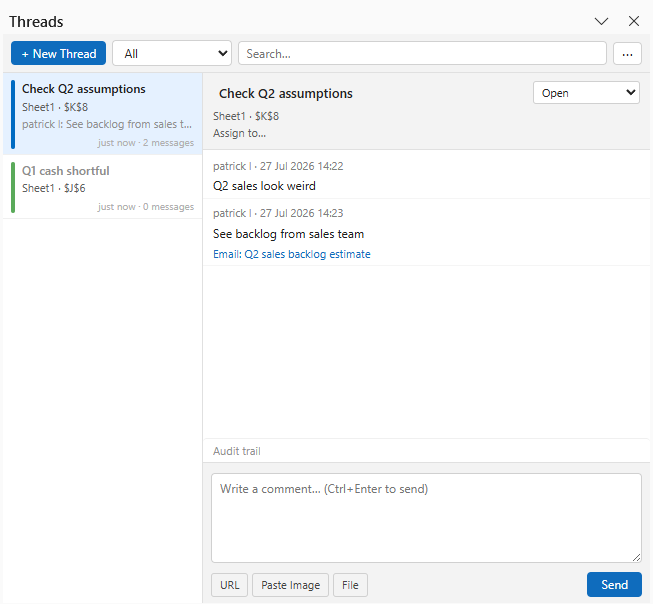
- In Excel, open the workbook you are reviewing.
- On the Navifia tab, in the Threads group, click Threads (or press Ctrl+Shift+T).
- The task pane titled Navifia — Threads docks beside the sheet. Click the button again to hide it.
Requirement: Threads (and Excel Links) need the Microsoft Edge WebView2 runtime. Microsoft 365 machines usually already have it; if the pane fails to load, install WebView2 from Microsoft and restart Excel. See Compatibility.
2. Create a thread on a cell or range
- Select the cell or range the question belongs to (the anchor — a single cell or a multi-cell range such as
A1:B4). - In the pane, click + New Thread.
- If nothing is selected, Navifia asks you to select a cell or range first.
- Type a title (optional but useful in long reviews).
- Click Create.
- In the Threads pane, write the first comment, then Send (or Ctrl+Enter in the comment box).
The thread is anchored to that selection. If rows/columns shift later, Navifia keeps the thread pointed at the right place. All data (comments, replies, attachments, status) is stored inside the workbook file — open it on another PC and the threads are still there.
3. Reply, edit, and navigate
- In the left list, select a thread to open the detail view.
- Type in Write a comment… and click Send (or Ctrl+Enter).
- Use the list Search… box to filter by text across threads.
- Click a thread’s cell/range reference in the detail header to jump to the anchored selection on the sheet.
Resolved threads sort below open ones in the list so active work stays on top.
4. Status workflow
Each thread has one of four statuses (set from the dropdown on the thread header). Filter the list with All or any one status:
| Status | Typical use |
|---|---|
| Open | New question or work in progress |
| Pending Review | Waiting on a reviewer / manager |
| Pending Info | Blocked on more data from the BU or another team |
| Resolved | Settled — stays as an audit trail until deleted |
That is richer than Excel’s native threaded comments, which only support resolve / reopen.
5. Attachments
Attach evidence to a comment before or when you send it. Three kinds:
| Control | What it attaches | How |
|---|---|---|
| Paste Image | Screenshot or copied picture | Copy an image (Win+Shift+S, Excel Copy as Picture, etc.), then click Paste Image. Oversized images are auto-compressed to JPEG (~120 KB) when possible. |
| File | Image file or Outlook email | Browse for an image or .msg / .eml , or drag the file onto the editor area. |
| URL | Link with optional title | Click URL and enter the address (and display title if prompted). |
Email capture: drag an Outlook message onto the pane, or drop / browse a saved .msg / .eml. Navifia stores a short preview (subject, from, sent time, body excerpt) and, when possible, embeds the original email file in the workbook so it travels with the file. Caps: about 2 MB per email and 10 MB total embedded email size per workbook — larger messages still keep the preview. Click an attachment to open it in Outlook when available, or open the embedded file; otherwise you see the stored preview.
Size caps: about 150 KB per image and 5 MB total images per workbook, so the file stays shareable. Pending attachments show above the comment box until you Send.
6. Assign and audit trail
- Assign — click the assignee line under the title to set (or clear) a person name. This is a label for your team’s process; it does not send email by itself.
- Audit trail — click Audit trail on the thread to see status/history changes for that thread.
7. Resolve and delete
- Set status to Resolved when the question is settled. The thread stays in the workbook as history.
- Open the ⋮ menu (top of the pane) for bulk cleanup: - Delete resolved threads… — permanently removes every Resolved thread. - Delete all threads… — clears every thread in the workbook (irreversible).
Both bulk deletes ask for confirmation. Prefer Delete resolved after a close; avoid Delete all unless you are wiping a draft model.
8. See open threads from PowerPoint
- Open a deck that has linked shapes from the model workbook.
- Navifia tab → Threads (Excel sync group).
- The Threads pane lists open / pending threads from linked source workbooks — each message shows a short preview of its first words so you can scan the conversation without opening Excel.
- Click a row to select the linked shape on the slide, or Go to Thread to jump to the cell in Excel (and open Excel’s Threads pane on that thread).
Creating and replying still happen in Excel. PowerPoint’s Threads pane is a read/surface view for the deck builder.
9. Threads vs Excel’s native comments
| Navifia Threads | Excel threaded comments | |
|---|---|---|
| Storage | Inside the workbook file | Native Office comments |
| Status | Open / Pending Review / Pending Info / Resolved | Resolve / reopen only |
| Attachments | Images, URLs, Outlook emails (embedded .msg/.eml when available) | Text (and limited native options) |
| Visible from PowerPoint | Threads pane (message previews) | No |
Use Threads when you need evidence and a review workflow, not only a one-line comment — Excel already has native comments for that.
10. Troubleshooting
- Pane blank / fails to load — install or repair WebView2; restart Excel; confirm license is activated.
- “Select a cell first” — select a cell or range on the sheet before + New Thread.
- Email won’t open the original message — uncommon when only a preview was stored (for example under the new Outlook app without attaching a
.msg/.emlfile) or the message exceeded the size limit. Use the in-pane preview, or re-attach from a saved.msg/.eml. If Outlook shows a Custom UI Runtime Error from the Microsoft Teams Meeting Add-in when a message opens, that is an Outlook/Teams add-in fault — click OK to All, or disable/repair that COM add-in in Outlook Options; Navifia opens the embedded.msg/.emlvia the shell rather than Outlook’s inspector Display API. - Paste Image does nothing — clipboard may not hold an image. Capture with Win+Shift+S or Copy as Picture, then try again.
- Image rejected as too large — after auto-compress it still exceeds the cap; crop or shrink the screenshot and retry.
- Thread not in PowerPoint Threads pane — the deck must have a linked shape from that workbook, and the source workbook should be open in Excel. Click Refresh in the Threads pane.
- Threads missing after emailing the file — the recipient needs the same
.xlsxfile (threads travel inside it). Prefer a full Excel workbook format; some export formats drop embedded review data.
Suggested review workflow
- Reviewer opens Threads, filters to Open / Pending Review.
- Anchors questions on cells or ranges; attaches the supporting email or screenshot.
- Analyst replies, sets Pending Review when ready for sign-off.
- Reviewer marks Resolved.
- Deck owner opens PowerPoint Threads before Push / send.
- After the close, Delete resolved threads… if you do not need the trail in the archive copy.