PowerPoint · Configure
Navifia tab → Config: Settings (Layouts / Elements / insert position), Export / Import setup, shortcuts, indicators, theme/master, and the templates folder.
Layouts, Elements, and indicator colours have their own chapters — this page covers the remaining Configure work: templates folder, Import/Export setup, and team rollout.
.navifia.json, or point everyone at branded ContentLayouts.pptx / Shapes.pptx.Related: Layouts · Elements · Visual indicators · Keyboard shortcuts. Excel-side prefs: Excel · Configure.
1. Templates folder (rebrand foundation)
Navifia reads two template decks from a folder (default: Documents\Navifia Templates):
| File | Drives |
|---|---|
ContentLayouts.pptx |
Slide Layouts (cover, section, columns, glossary, …) |
Shapes.pptx |
Elements (text boxes, source notes, tables, logos, …) |
Change the folder: PowerPoint → Getting started → Browse… — the only picker. Shared by both add-ins (Excel Set Default theme colours also read from here).
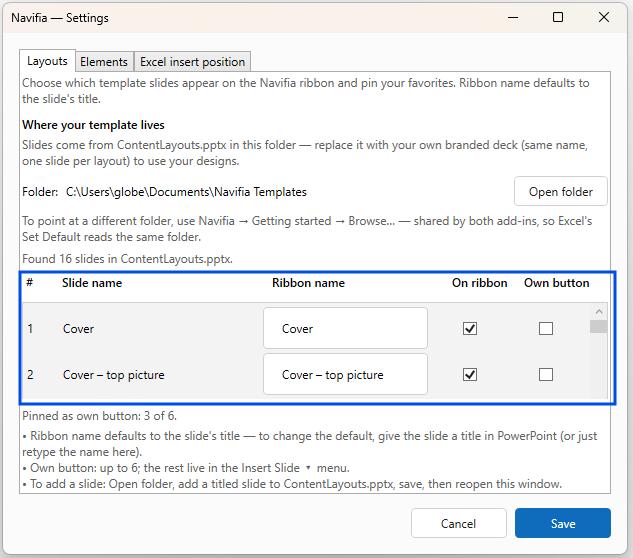
See the current folder: Configure → Settings… → Layouts tab → Open folder.
Replace the two files with your branded decks (same filenames). Add slides/shapes freely — they become selectable in Settings with no code change. Curate pins in Layouts and Elements.
2. Export / Import setup
Two separate bundles (not interchangeable): one for PowerPoint, one for Excel. Both write a shareable .navifia.json.
PowerPoint — Configure → Export setup / Import setup
Exports: which layouts and elements appear on the ribbon, indicator colours, keyboard shortcuts, the pinned theme/master choice, and Excel insert position.
Does not export: the Templates folder path (each machine points at its own copy of the decks).
Import: applies the layout and element choices, merges other settings, and refreshes the ribbon immediately. Insert position is also applied in Excel so both apps stay aligned.
Excel side
Excel has its own Export setup / Import setup (shortcuts, Smart formatting, Quick sizing, Spotlight, Set Default, insert position). See Excel · Configure.
Typical team rollout
- Drop branded
ContentLayouts.pptxandShapes.pptxinto the templates folder (or a shared drive folder + Browse… on each PC). - Team lead: Settings → pin layouts/elements; Configure indicators / shortcuts; Excel Smart formatting / Quick sizing as needed.
- PowerPoint Export setup → send
.navifia.jsonto the team → each person Import setup. - Excel Export setup → second file for Excel-side prefs → each person Import setup in Excel.
- Teammates still need the template decks locally (or via the shared folder path).
Factory setup (installer)
On first run, if the installer placed factory-setup.navifia.json (PowerPoint) / factory-setup-excel.navifia.json (Excel) in the Navifia Templates folder and the profile has never applied one, that bundle imports once automatically. Existing user configs are never overwritten by this path.
3. Other Configure entries (quick map)
| Control | Where documented |
|---|---|
| Settings… — Layouts / Elements / Excel insert position | Layouts · Elements · Excel Sync |
| Set theme and slide master | Layouts |
| Configure indicators | Visual indicators |
| Configure shortcuts | Keyboard shortcuts |
| License / Getting started / Diagnostics | Getting started (License group in both apps) |
Troubleshooting
- Import did nothing visible — wrong host file (Excel vs PowerPoint bundle); open the matching app. Layouts still empty → template decks missing or wrong folder (Browse… / Open folder).
- Teammate’s layouts look unbranded — they imported the JSON but still have starter
ContentLayouts.pptx; replace the decks on their machine or point Browse… at the shared branded folder. - Insert position differs Excel vs PowerPoint — re-import the setup that carries insert position, or set Excel insert position in PPT Settings and Export again.