PowerPoint · Excel Sync
Link charts, tables, ranges, and (beta) cell values from Excel into the deck — then refresh them without re-pasting.

1. Insert a linked shape
- Open the source workbook in Excel and select a chart, a cell range, or a PivotTable.
- Leave Excel open. Switch to PowerPoint and go to the slide where the object should land.
- On the Navifia tab, in the Excel sync group, click Insert from Excel (or press Ctrl+Shift+I).
- The linked shape appears on the slide. Move and resize it like any other shape — position and front-to-back order are kept on later updates.
Default landing spot for a single object is about 1.32 cm from the left and 3.5 cm from the top (same as Excel’s Export to PPT). Change it under Configure → Settings → Excel insert position. Selecting several ranges at once tiles them and ignores that fixed position.
What is stored: each shape carries a link identity (workbook path, sheet, address, type, last update). You do not manage that ID by hand — Excel Links shows it.
2. Choose a format
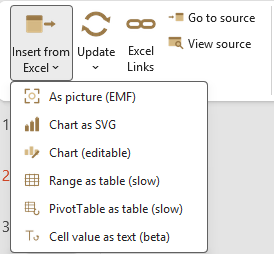
Click the arrow on Insert from Excel to open the menu:
| Menu label | Use when | Notes |
|---|---|---|
| As picture (EMF) | Default for most charts and ranges | Sharp at any zoom; not editable as table/chart text |
| Chart as SVG | You need a vector chart that stays crisp when resized | Charts only; requires current Microsoft 365. Older Office falls back to a high-quality picture |
| Chart (editable) | You want a native PowerPoint chart you can restyle | Charts only; Excel style/gridlines preserved when possible |
| Range as table (slow) | You need editable table text on the slide | Ranges only; carries fills, borders, merges, and conditional formatting. Large tables (~75+ rows or ~20+ columns) warn before insert/update |
| PivotTable as table (slow) | Same as above from a PivotTable | Pivot output only |
| Cell value as text (beta) | A single KPI or label as live text | See next section — no Excel Export equivalent |
If you pick a format that does not match the selection (for example SVG on a plain range), Navifia falls back to As picture (EMF) instead of failing.
3. Cell value as text (beta)
Use this when a number or label should appear as text on the slide and stay tied to one Excel cell.
Standalone box (recommended)
- In Excel, select one cell (multi-cell is refused).
- In PowerPoint, make sure you are not editing inside a text box (no blinking cursor in a shape).
- Navifia tab → Insert from Excel → Cell value as text (beta).
- A small linked text box appears. Style the font once; every Update overwrites the whole box from Excel (so accidental edits are corrected).
Embedded in a sentence
- Click into an existing text box where the value belongs (or select placeholder text).
- Run Cell value as text (beta) — the value inserts at the cursor.
- On refresh, Navifia replaces only the exact last-written substring. If you edited that text away, it appears twice, or the source cell went blank, Update fails with guidance — it will not guess a wrong substring.
Limits: one linked value per text box; the box must not be inside a group. Prefer standalone boxes during beta.
4. Update linked shapes
Update one shape
- Select the linked shape on the slide.
- Click Update (Ctrl+Shift+U), or open the Update menu for a size strategy.
- Navifia finds the source workbook (open or reopens it), recaptures the content, and replaces/refreshes the shape. Position and z-order stay put.
| Update menu | Sizing behaviour |
|---|---|
| Update (main button) | Uses the strategy stored on the shape at insert (usually Fixed width) |
| Fixed width (default) | Width stays; height adjusts |
| Fixed height | Height stays; width adjusts |
| Natural Excel size | Takes the natural size of the new capture |
| Update all links in deck | Refreshes every linked shape in this presentation (same batch logic as Excel Links) |
Grouped shapes: links inside groups appear in Excel Links, but picture/chart Update that replaces a shape cannot re-join a group — ungroup first. Text (beta) updates in place and does not need ungrouping.
Jump back to Excel
- Go to source — opens Excel and activates the source range.
- View source — shows workbook path, sheet, address, last update, and type without leaving PowerPoint.
5. Excel Links pane
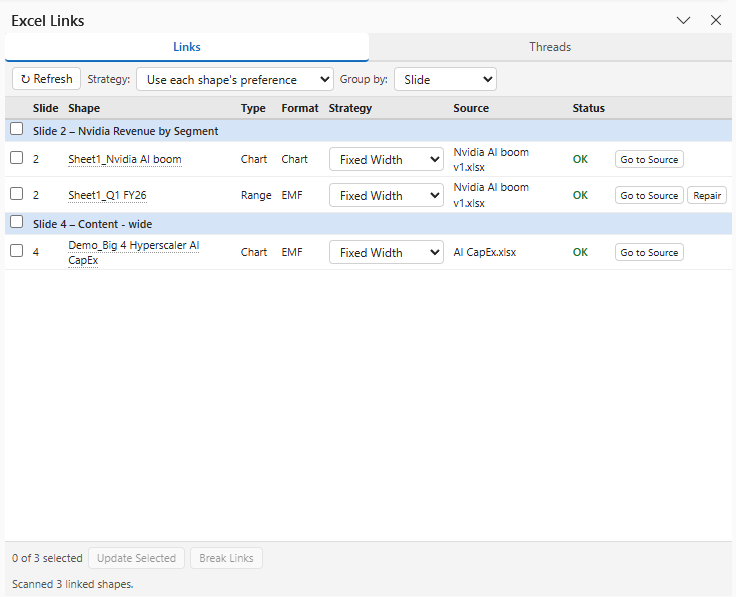
- On the Navifia tab, click Excel Links (Ctrl+Shift+E).
- The Links tab lists every linked shape, grouped by source workbook (including shapes nested in groups).
- Each row shows sheet, address, type, last update, and status.
| Status | Meaning |
|---|---|
| OK | Source workbook and range found |
| Stale | Shape has not been refreshed since the source last changed |
| Source missing | Workbook/range moved, renamed, deleted, or a cloud file is closed with no local sync copy |
Bulk actions
- Update / Update all — refreshes selected or all listed links; one broken row does not stop the batch.
- Remove Link — per-row (especially Text (beta) and failed rows): stops tracking; content stays on the slide.
- Break Links — clears Navifia tags on the selected rows in the open deck so shapes become ordinary content. For an outbound file that keeps your working links intact, use Finalize deck instead.
- Make Independent — only for duplicate Link ID rows (usually from copy-paste). Gives that shape its own identity so updates no longer affect both.
Open review threads from linked workbooks live in the separate Threads pane (Navifia → Threads), not inside Excel Links.
6. OneDrive / SharePoint workbooks
Links work when the model is opened from OneDrive or SharePoint (AutoSave on). Navifia stores the cloud URL, matches by file name, and prefers a local OneDrive-synced copy when one exists. Keep the file available in the sync client, or open it in Excel, so Excel Links does not show Source missing after you close the workbook.
7. Troubleshooting
- Insert does nothing / cannot find Excel — Excel must be running with a selection. Restart both apps if the connection was lost.
- Source missing after rename/move — reopen the matching workbook (same file name), or Remove Link / Break Links and re-insert.
- Two shapes update together — duplicate Link ID from copy-paste. Open Excel Links → Make Independent on the duplicate row.
- Table styling resets after Update — if the Excel range’s row/column count changed, the shape is replaced rather than refreshed in place. Keep the range shape stable in Excel when you care about PowerPoint-only table formatting.
- Embedded text Update failed — the tracked substring no longer matches uniquely. Remove Link and re-insert (prefer a standalone box).
- SVG failed — use current Microsoft 365, or insert as picture / editable chart instead.