PowerPoint · Check
Before a board or client pack leaves the building: inventory periods, then figures, then (optionally) fonts. All three live on the PowerPoint Navifia tab → Tools group.
Note: these tools scan and flag text on slides so you can review what looks off — they do not guarantee every error is caught.
1. Recommended order
- Finish Sync — Push updates or Update all links in deck so the pack matches the model.
- Run Check period (Ctrl+Shift+P) — stale “as of” labels and FY/CY mixes.
- Run Check numbers (Ctrl+Shift+N) — leftover KPIs.
- Optionally run Check fonts — off-brand typefaces; use the Replace tab to swap.
- Clear draft stamps / finalize if the file leaves the firm (Send & Finalize / Stamps, Redact & Transparency).
On the ribbon the Tools column lists Check numbers , then Check period , then Check fonts . Workflow order is still Period → Numbers → Fonts.
2. Check period
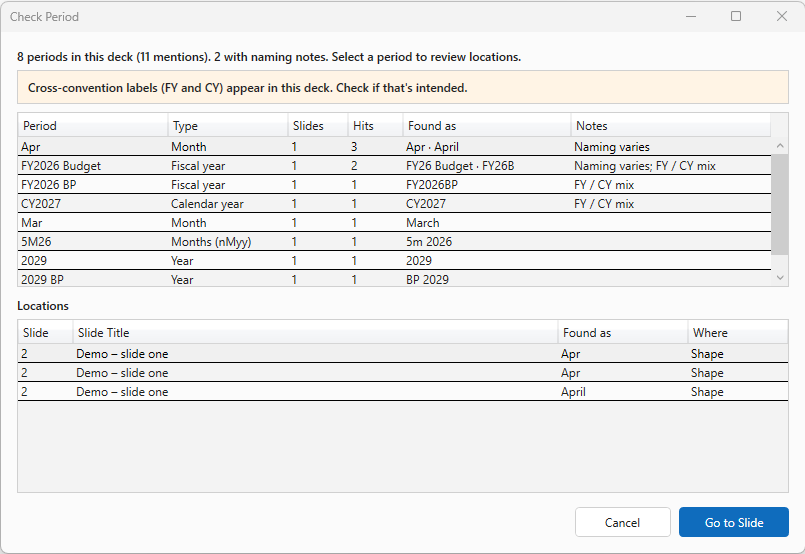
Goal: answer “what periods does this deck claim to cover?” so a leftover month, a Q1 title in a YTD May pack, or an FY/CY mix is obvious while you can still fix it.
Steps
- Open the deck in PowerPoint.
- Navifia tab → Tools → Check period (or Ctrl+Shift+P).
- Scan the period list. Rare or flagged periods sort toward the top. Notes may say naming differs (e.g. FY26 ≈ FY2026). A headline warns when both FY and CY appear.
- Select a period — the Locations list shows every slide, the exact spelling found, and whether it sits in a shape or a table.
- Double-click a location (or use Go to Slide) to jump there and fix the text.
- Re-run after edits if you want a clean list before send.
What counts as one period
- Same logical period, different spellings, share one row — e.g.
FY26andFY2026, orFY26B/FY2026 Budget. - YTD and QTD are never merged (nor MTD/WTD, nor LTM/NTM) — each is its own row.
- Recognised families include months, quarters, half-years, to-date tags, fiscal/calendar years, nMyy windows (
3M25), and rolling LTM/NTM. - Scenario suffixes (
A/B/E/F, Actual/Budget/Estimate/Forecast, LE/BP/RF) attach when a year is present — e.g.1Q26E,FY26F. - Bare scenario words with no year (
LE,Budgetalone) are hidden from the list.
3. Check numbers
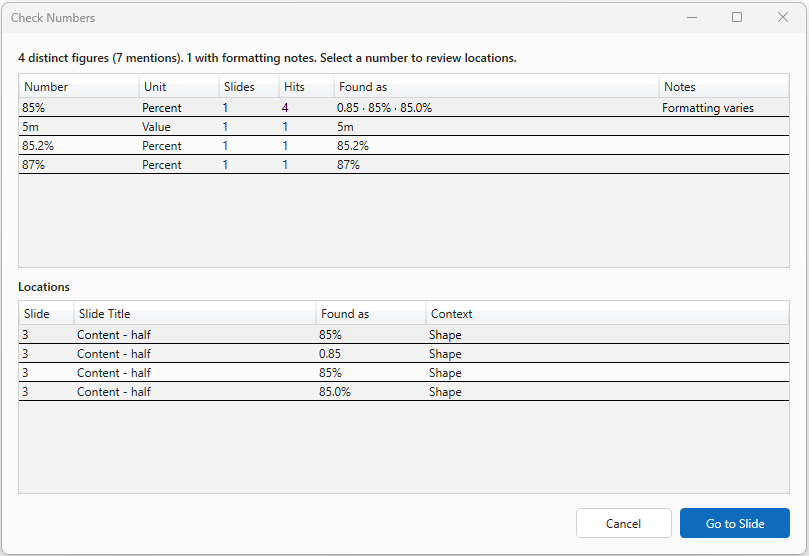
Goal: inventory distinct quantities hardcoded in the deck so a leftover KPI (appears once, or only on one slide) stands out.
Steps
- Navifia tab → Tools → Check numbers (or Ctrl+Shift+N).
- Scan the list. Groups with formatting notes and figures on the fewest slides sort first.
- Select a number — Locations show slide, exact spelling, and context.
- Jump to each location and fix or confirm the figure.
How values are grouped
| These share a row | These stay separate |
|---|---|
$1,234 ≈ 1234 ; $100 ≈ 100 ; 1.2m ≈ 1,200,000 |
Different magnitudes |
80% ≈ 80.0% ≈ 0.8 |
Bare 14.2 vs 14.2% |
| — | $0.8 is never treated as 80% |
When spellings differ but the quantity matches, Notes shows Formatting varies .
Skipped: lone single digits; bare years 1900–2099. Chart and SmartArt text are not scanned.
4. Check fonts (optional brand pass)
Font replace is part of deck QA — not a separate polish tool. Use it after Period and Numbers when a rogue typeface slipped in.
Check tab
- Navifia tab → Tools → Check fonts.
- Fonts list rarest-first (fewest slides using them).
- Select a font to see every location (run count; shapes vs tables).
- Double-click a location to jump there.
Replace tab
- Open the Replace tab in the same dialog.
- Choose the font to replace and the target font.
- Run replace — updates shapes, groups, and table cells (case-insensitive), then re-scans so the Check tab reflects the fix.
Text inside charts/SmartArt is out of reach; the dialog says so. Empty text boxes do not count as usage.
5. What these tools do not see
- Numbers or period labels drawn only as pictures (including EMF/SVG linked shapes) or inside native chart plot values.
- SmartArt text (fonts check also skips it).
- Semantic context — e.g. a linked “14.2%” that refreshed to “−3.1%” while the word “grew” around it stayed wrong. No tool catches that; a human still reviews titles and footnotes.
6. Troubleshooting
- Expected period missing — unusual abbreviations may not match. Check the slide text spelling; re-run after a small edit to confirm recognition.
- Too many FY/CY warnings — intentional dual calendars still trigger the headline; treat it as a review prompt, not always an error.
- A leftover figure never appears — it may be inside a chart picture or SmartArt. Check those shapes by eye.
- Replace did not change a chart label — chart text is not in scope; edit the chart or re-export from Excel.
- Shortcut conflict confusion — in PowerPoint, Ctrl+Shift+P is Check period; in Excel the same chord is Push updates. Use the app you are in.
Suggested pack-close checklist
- Push / Update all links
- Check period → fix stale labels
- Check numbers → clear leftovers
- Check fonts → Replace if needed
- Excel Links → no Source missing; Threads pane → open questions you still care about
- Send slides to share a PPT/PDF, or Finalize deck for a clean outbound copy (working deck unchanged). Use Break Links only if you mean to unlink the open deck.